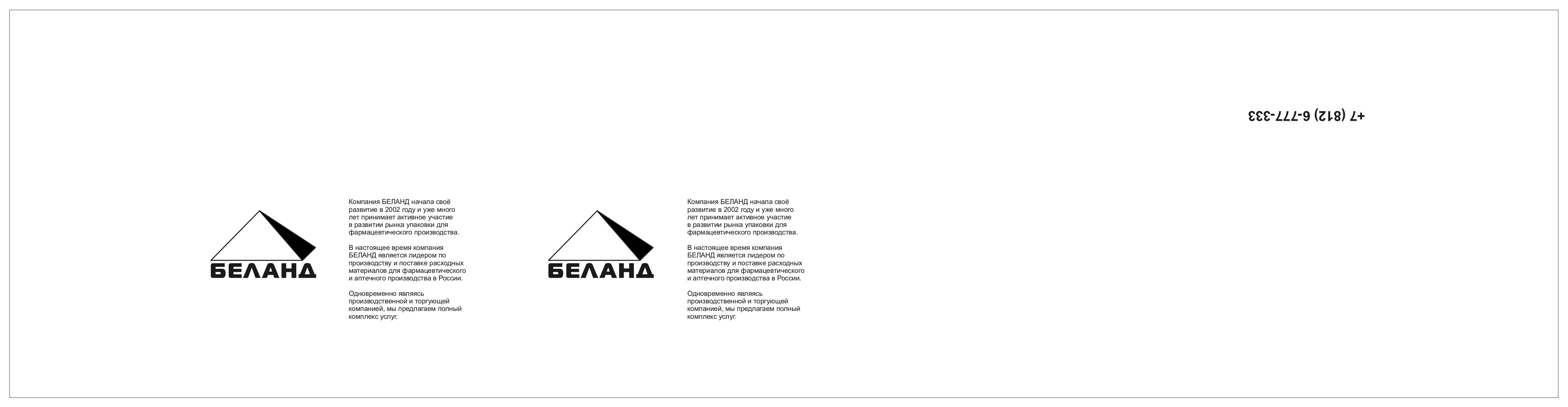
Requirements for the layout for frame production
- The layout can be created in CorelDraw or Adobe.
- Text and elements should be black (C:0, M:0, Y:0, K:100) on a white background, regardless of the colour of the silk screen printing.
- If non-standard fonts are used, they must be provided together with the layout.
- For high-quality printing, the minimum line thickness must be 0.1 mm.
- Try not to use complex elements in your design
- A book has several pages, the image is small, and there is a high probability that when printing, the contour lines of this image will merge into a single thick colour spot.
- A QR code, which may become irrelevant when pixels become obsolete.
PREPARING THE LAYOUT FOR PLACEMENT ON THE FRAME (STENCIL)
Step 1
- Create a workspace measuring 405 mm x 105 mm
- Draw a rectangle measuring 400 mm x 100 mm
.jpg)
You can use a ready-made file with a rectangle and guides Frame
Step 2
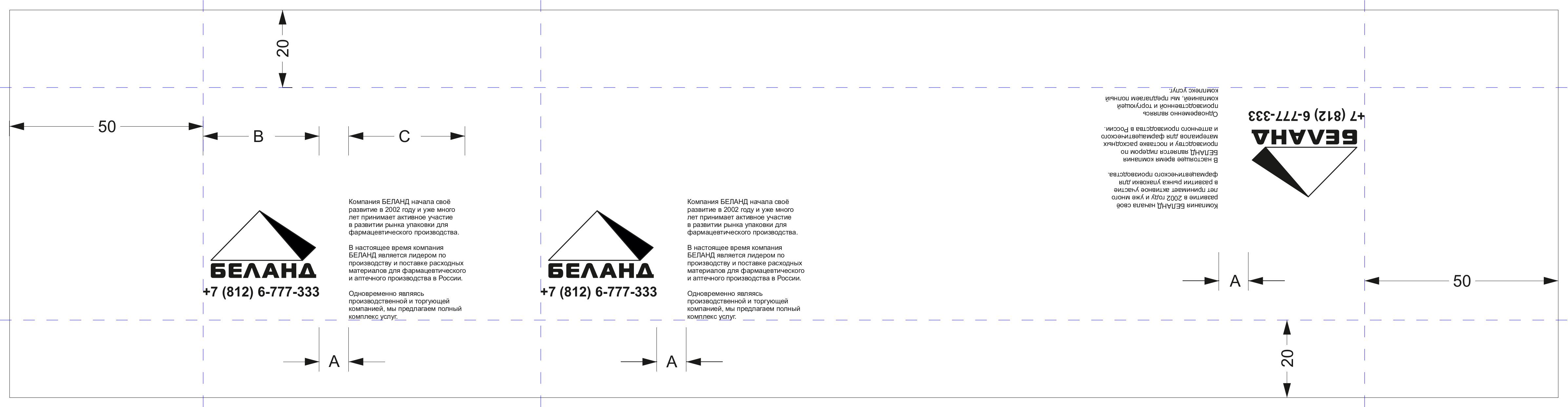
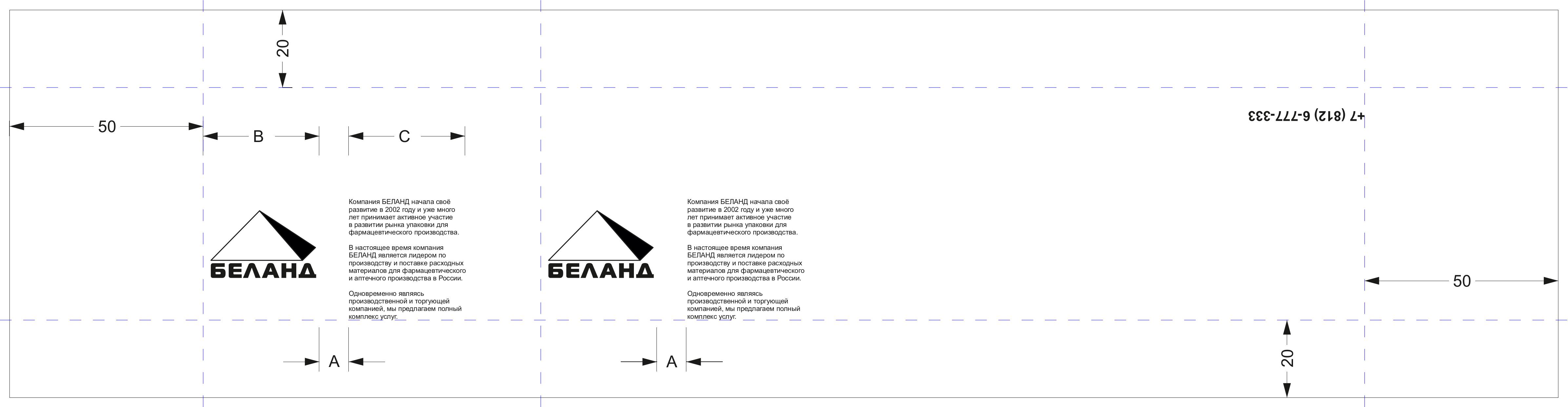
- Make an indent from the rectangle; for most bottles, this is 50 mm on the left and right, 20 mm at the bottom and top; use the guides (depending on the size of the bottle, the indent values may vary, so check the information).
- Place the front part (image) and the back part (text) inside the resulting field at a distance ‘A’ from each other.
- The distance ‘A’ between the front part (image) and the back part (text) is calculated using the formula A = ((D∗π) − B − C)/2
where:
- A – distance between the front and back, indent;
- D – diameter of the bottle;
- π – mathematical constant 3.14;
- B – width of the front;
- C – width of the back.
This creates a block of image and text.
Fill the space inside the field with blocks, leaving a distance of 20 mm between them.
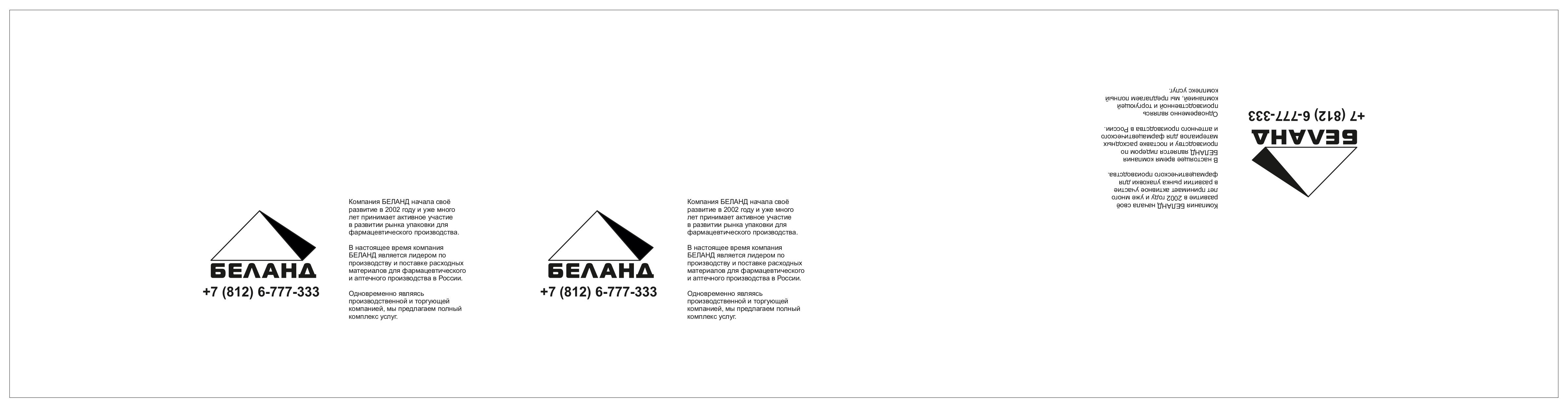
Depending on the size of the image/text, one or more such blocks can be placed (we recommend making several if possible, this will allow you to use neighbouring ones if they start to fail), one or two blocks must be placed upside down at the top of the field.
The file is saved without auxiliary elements and guides, resulting in the following appearance:
IF YOU NEED TO MAKE A MULTICOLOURED SILK-SCREEN PRINT
For example, you need to make one of the elements a different colour. Let's look at the example of a telephone number.
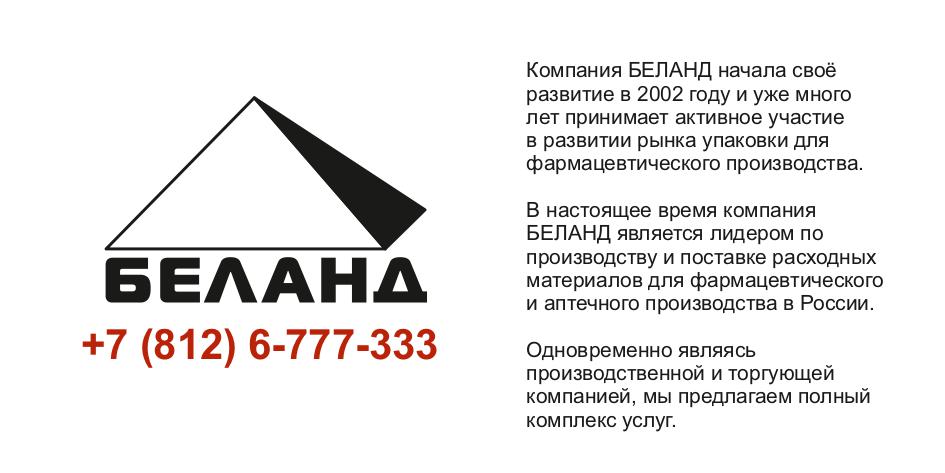
In the example, the element is highlighted in red, but regardless of the example, your layout will be printed entirely in black (C:0, M:0, Y:0, K:100).
Please indicate which element will be a different colour or provide the original layout (we recommend discussing this with the manager to avoid misunderstandings).
Step 3
- After placing the image/text blocks in two blocks, delete the element that will be in a different colour, and in the third block, leave only this element (in this case, the phone number), keeping the layout of the blocks and the position of the elements.
- The blocks are not moved and are executed in black (C:0, M:0, Y:0, K:100).
The file is saved without auxiliary elements and guides, resulting in the following appearance: